



Component Search Results
The Search Results block was designed to display, within the page, the content returned by an integrated search. It lets you define the results label, limit searchable content types and categories, control result limits, ordering and pagination, and decide whether results should appear even when the search is empty.
General information
The Search Results block is a direct solution for showing users the content that matches the terms entered in an integrated search. It works well in help centers, documentation areas, knowledge bases, editorial hubs, or any context where information discovery needs to be faster and more controlled.
This block can include:
- label customization through the Results Label field
- search scope restriction with Search Content Types and Search Categories
- volume control with Limit and presentation order adjustment with Order
- result navigation through Paginate
- the option to show results even without a search term through Show results on empty search
- base block structure through Skin and Disabled block
Use this component when search is already part of the page experience and you need precise control over which content can appear, in what quantity, and with what navigation behavior. It is especially useful when you want to avoid an overly broad search experience and ensure results stay consistent with the editorial area the user is in.
Visual examples of the block
3 recurring patterns built from the same logic
The Search Results block can be interpreted differently depending on the searchable universe and the way you want to guide users after they enter a term. The three examples below show common combinations of search scope, editorial filters, and listing behavior.
When to use / When to avoid
Correct application of the component
When to use
- To create results pages connected to an integrated search within the site
- When you need to limit the search to specific content types or categories
- When you want to combine search, result limits, and pagination in a single experience
- For knowledge bases, help areas, documentation, and discovery-oriented editorial hubs
When to avoid
- When the goal is to show a fixed manual selection of content with no relationship to search
- When there is no search field or no clear context that justifies returning results
- When the presentation logic depends more on manual curation than on matching search terms
How to use it in practice
Recommended workflow sequence
Define the context
- Decide where the search takes place and what kind of user intent exists in that area
- Write a Results Label that helps frame the returned results
Limit the universe
- Select the Search Content Types that truly make sense for the search
- Add Search Categories when you need to refine relevance even further
Adjust the behavior
- Define Limit according to how much depth you want to offer in the first view
- Enable Paginate when the result set is larger and you need staged navigation
Validate in preview
- Test a real search to confirm the quality of the returned results
- Check what happens when there is no term and whether Show results on empty search makes sense in that flow
Content best practices
Consistency, usefulness, and readability
Source quality
- Make sure searchable content has clear titles, strong summaries, and coherent taxonomies
- If the source content is poorly named or weakly structured, the search experience loses relevance
- Avoid including content types that add no value to the page context
Relevance and expectation
- Use Search Content Types and Search Categories to reduce noise and bring the listing closer to the search intent
- Do not show empty-search results by default if that could confuse users about how the search works
- If you choose to show results for an empty search, treat them as initial suggestions rather than a final answer
Advanced settings for the Search Results component
Minimum block structure

These options ensure the minimum block structure and let you enable or disable it without changing the main search logic.
Skin
- Skin defines the base visual variant of the block and helps align it with the context in which the search appears
- Even when the configuration is simple, the skin can influence how important the search feels on the page
Disabled block
- Disabled block lets you temporarily disable the block without removing it from the composition
- It is useful when you want to suspend search on a page without losing the configuration already created
Editorial implementation
- In this block, most of the behavior is concentrated in the main configuration, so the advanced options mainly act as a structural layer
- It is worth confirming early on whether the search should be visible immediately or only on more specific pages
Main content configuration
Label, searchable universe, and result behavior
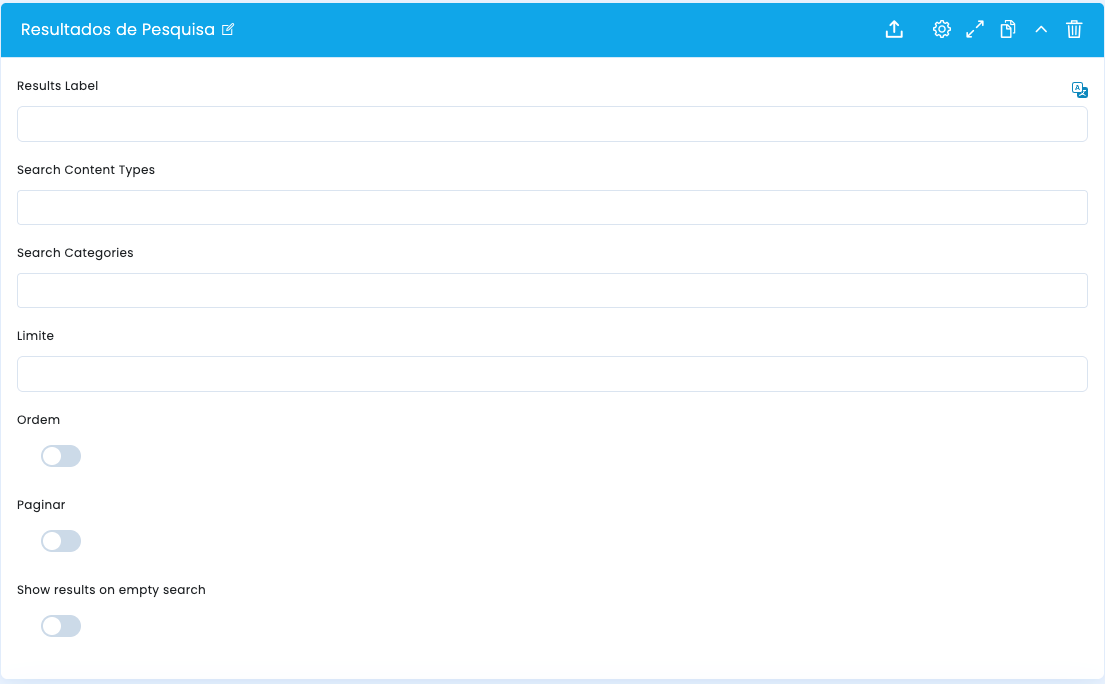
In the main configuration you define the listing label, the universe that can be searched, and how results should be returned to the user.
Results Label
- Results Label helps frame the returned search results and gives the user more context
- It can be used to identify the searched area, the result type, or the listing logic
Search scope
- Search Content Types defines which content types can be returned by the search
- Search Categories lets you narrow that universe even further when editorial taxonomy is relevant
Limit and order
- Limit controls the maximum number of displayed results
- Order adjusts the direction of the listing according to the logic defined for the block
Pagination and empty search
- Paginate splits larger sets across multiple result pages
- Show results on empty search allows an initial set to appear even before a search term exists
Content type selection
Which universes can enter the search
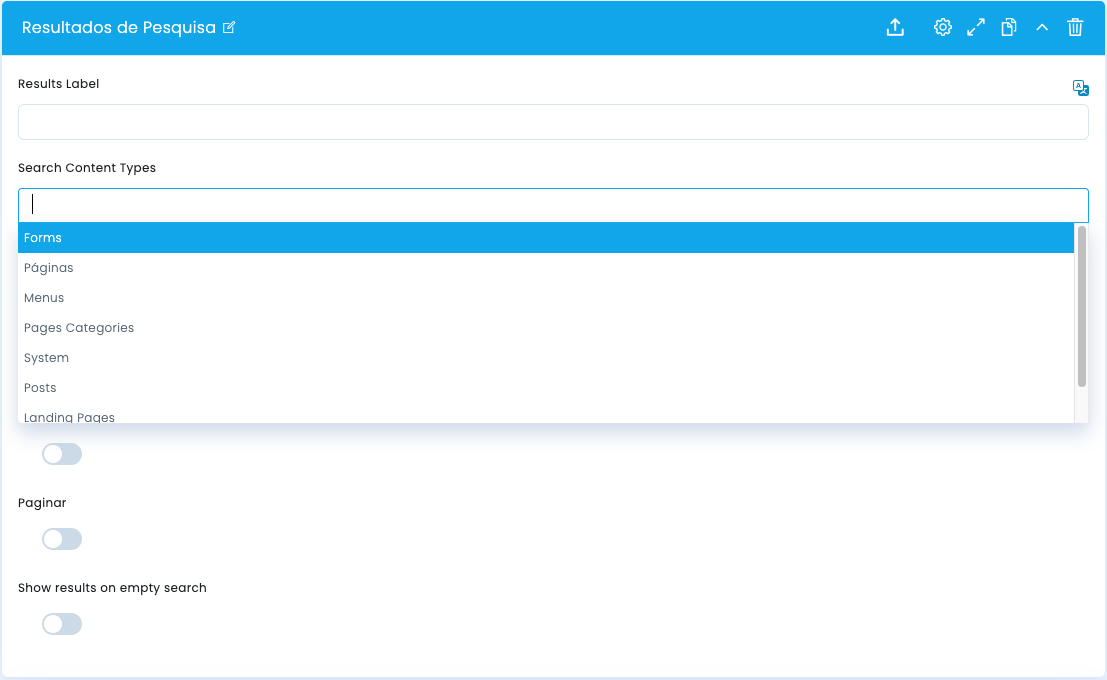
Content type selection limits which editorial universes the search can return, avoiding results that are less relevant to the page context.
How it works
- Search Content Types works as a structural filter over the source of the results
- You can combine multiple types when it makes sense, such as Pages, Posts, Menus, or Landing Pages
- The more controlled this field is, the more predictable the search experience tends to be
When to narrow it down
- Narrow the types when the page serves a clear goal, such as support, help, or documentation
- Avoid mixing very different types unnecessarily, because that can weaken the perceived relevance of the results
- If the block lives inside a thematic area, it makes sense to align the types with that editorial promise
Category selection
Thematic refinement of the search
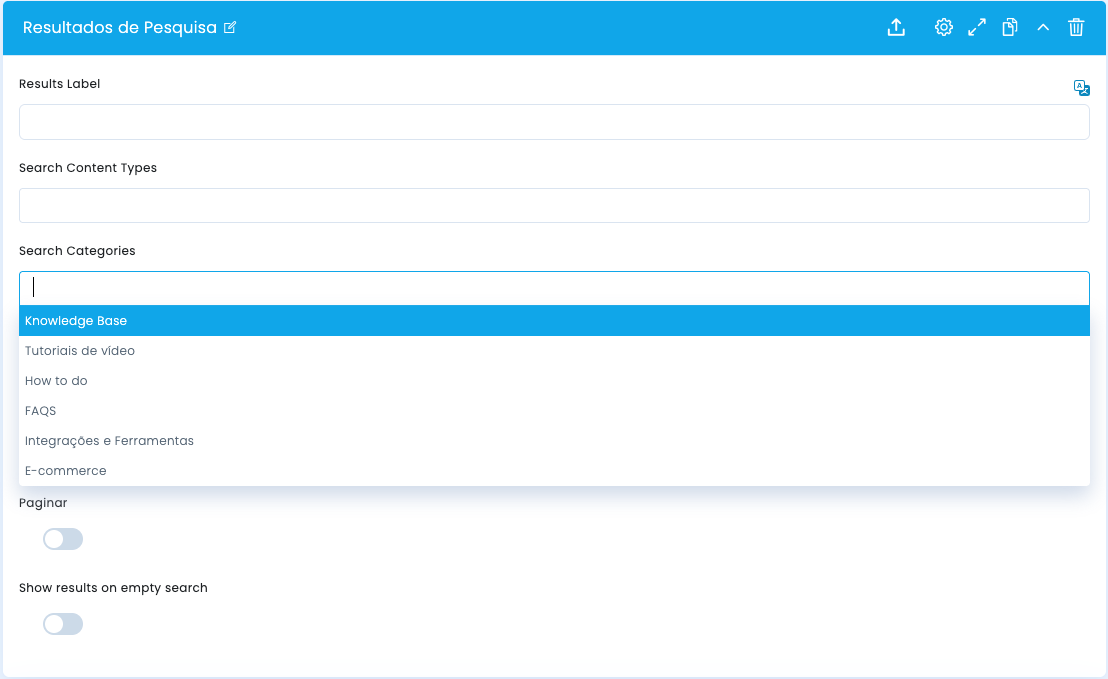
Categories refine the block even further by limiting the search to thematic areas or specific sections of the editorial ecosystem.
Refining the universe
- Search Categories helps narrow the search to areas such as Knowledge Base, Video tutorials, or other specialized sections
- It is especially useful when the same content type exists in very different editorial contexts
Use cases
- In a support area, you can limit results to help categories and exclude marketing or navigation content
- In an academy or knowledge base, you can separate tutorials, FAQs, and documentation into clearer editorial families