



Creating notifications
Notifications complete the functional cycle of the form, ensuring that each submission triggers a concrete action, such as an internal alert, a confirmation to the user, or both. In Studio, notifications are created with reusable templates and associated with forms.
Overview
In Studio, notifications are built from reusable templates. This approach makes the system more consistent, easier to maintain and reduces content duplication across similar forms.
What is a notification template
Reusable email model
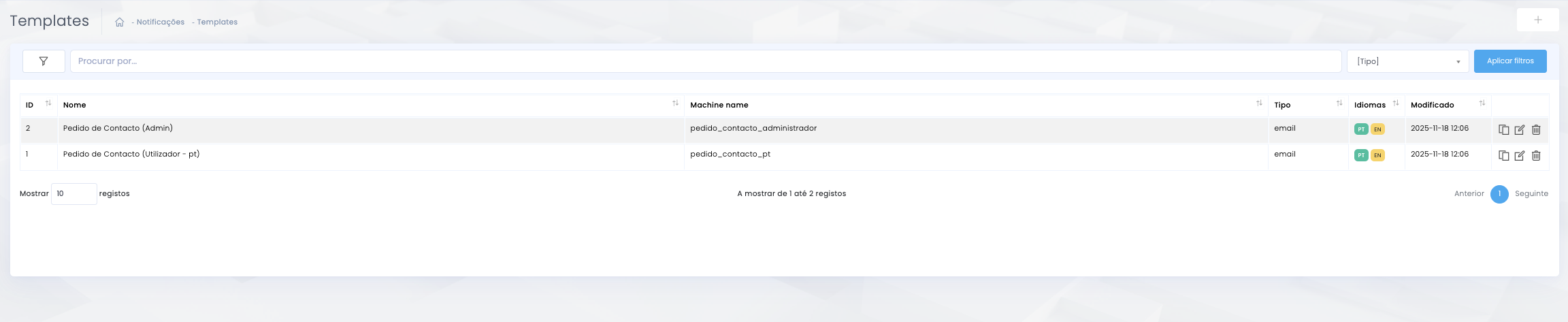
Templates are centrally managed and reused across multiple forms.
Technical structure
- Name is used for internal identification and should clearly indicate the purpose and recipient.
- Machine name is the technical identifier of the template and should be unique and stable.
- Language allows multilingual versions of the same template.
Content
- Subject should be direct and easily recognisable.
- Body contains the email content and may include dynamic variables.
- This approach improves consistency and simplifies maintenance.
Creating and editing the template
General data and content by language
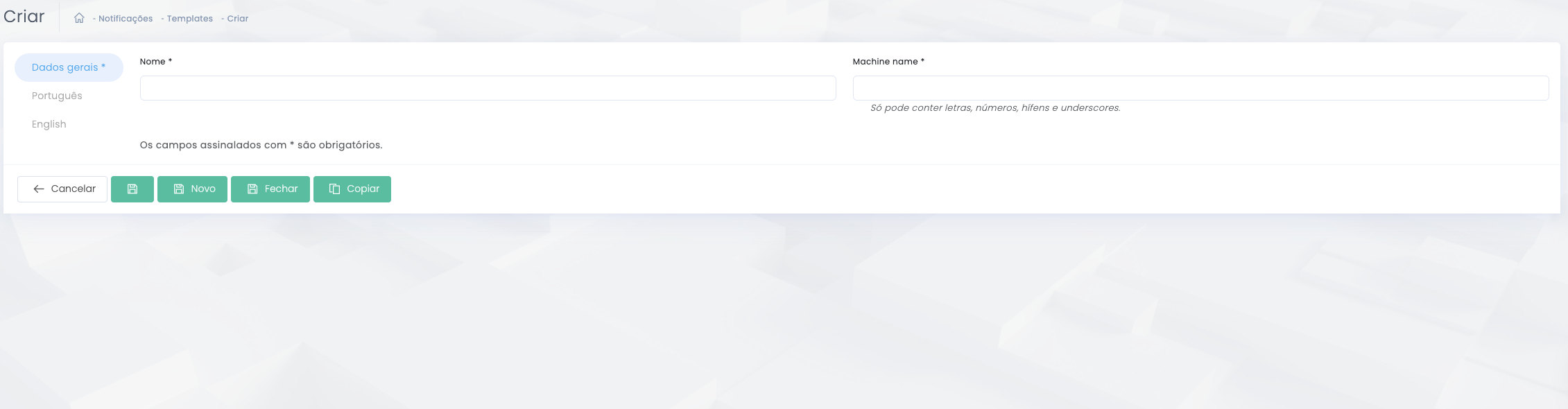
Creating the template with name and machine name.
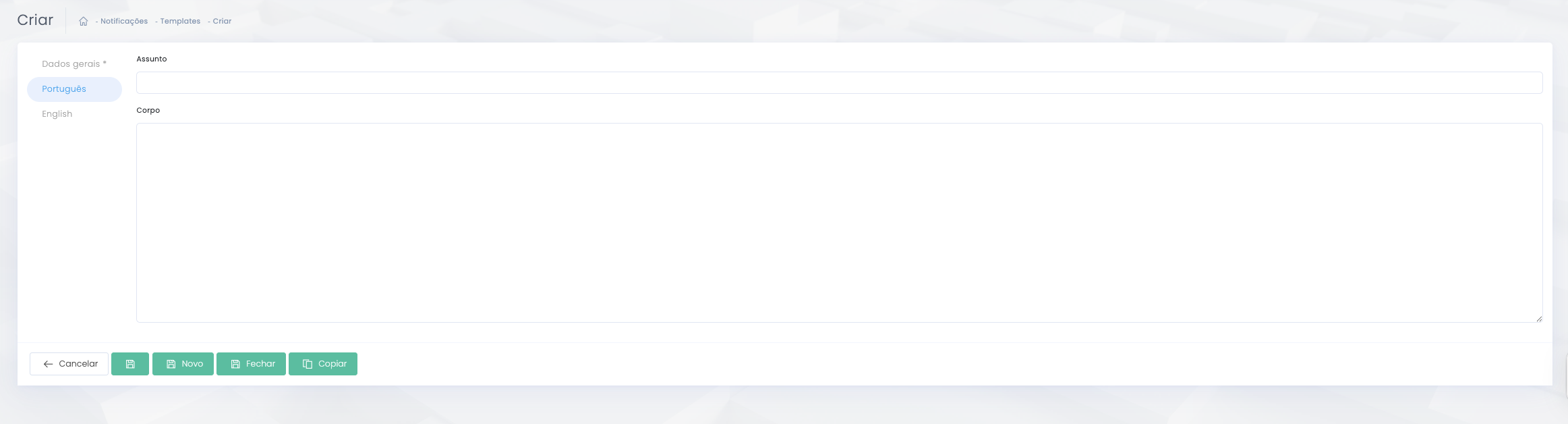
Defining the subject and body by language.
Administrator notification
Internal alert for the team
The administrator notification alerts the internal team about a new submission. It should be pragmatic, easy to triage and action-oriented.
- It should clearly identify the source form.
- It should include enough information for initial triage.
- It may be sent to a main address and, when necessary, to CC/BCC.
- It should be tested with real submissions before publication.
User notification
Automatic submission confirmation
The user notification serves as an automatic confirmation of submission. It reduces anxiety, reinforces trust and can explain the next steps.
- The tone should be clear, professional and objective.
- It should confirm that the message was received.
- It may indicate response time or next steps.
- It should not promise actions or timings that the team cannot actually deliver.
Operational settings
Link between template and form
After creating the templates, the form must reference them in the Admin Notifications and User Notifications sections.
- The sender email must be institutional and compatible with the project infrastructure.
- The sender name must be recognisable to the recipient.
- When the user reply is active, the form email field must exist and be properly mapped.
- CC and BCC should be used carefully.
4.5 Common notification mistakes
Frequent issues to avoid
- Associating the wrong template with the form.
- Forgetting to test the correct language.
- Configuring an invalid or inconsistent sender.
- Creating subjects that are too vague or not actionable enough.
- Using generic content that does not explain what happens next to the user.