



Video Component
The Video block was designed to integrate motion content into the page with flexible source selection and presentation control. It allows you to use Vimeo ID, YouTube ID, a video file, a cover image, autoplay, and HTML embed, while also adjusting skin, width, offset, animation, and metadata tied to the block itself.
General information
The Video block is a direct solution for highlighting audiovisual content inside the page composition. It can work as an editorial embed, a fullscreen hero, a cover-first module before playback starts, or a technical integration through custom HTML, while keeping visual coherence with the rest of the layout.
This block can include:
- Vimeo ID or YouTube ID for external embeds
- upload of a Video file with its own ALT and TITLE fields
- a Video Cover 1920x1080 image with its own metadata
- Autoplay control to define the playback start behaviour
- an HTML Code field for specific integrations
- structural adjustments for Skin, Full Width, Offset, spacing, and animation
Use this component when the video has a clear role in the page narrative and needs its own dedicated space. It makes the most sense for demos, interviews, institutional content, campaign openings, or moments where motion adds context that a static image cannot deliver on its own.
Visual examples of the block
3 recurring visual patterns
The Video block can take different visual forms depending on the chosen source, the use of a cover image, the autoplay decision, and the selected skin. The three examples below summarise common frontend scenarios without leaving the core logic of the component.
When to use / When to avoid
Proper use of the component
When to use
- For interviews, demos, institutional content, and moments where motion adds real context
- For campaign heroes, fullscreen openings, and sections where the video needs its own prominence
- When there is a clear cover image and a defined rationale for autoplay, embed, or manual start
- To integrate external players or first-party videos without needing a more complex playlist structure
When to avoid
- When a static image solves the message more lightly and with less technical noise
- When the video is only decorative and has no clear narrative role
- When the page is already too dense and an extra player worsens performance and focus
How to configure it in practice
Recommended workflow
Choose the source
- Decide whether the video comes from a Vimeo ID, YouTube ID, upload, or HTML Code
- Avoid ambiguity and align with the team on which primary source should take precedence
Prepare media and cover
- Upload the video file or embed and prepare a Video Cover 1920x1080 when it makes sense
- Fill in ALT and TITLE in a way that matches the visual context
Define behaviour
- Choose the Skin, test Full Width, and decide whether the block needs Offset
- Enable Autoplay only when it improves the experience and does not introduce noise
Validate on the frontend
- Test mobile behaviour, cover image, player start, and the balance between the initial image and page copy
- If several sources are filled in, confirm in preview which presentation rule is actually being applied
Content best practices
Source clarity, cover image, and playback
Cover and context
- Choose a cover frame that quickly explains the subject of the video, even before playback starts
- If the cover is the first visual reading of the block, it should stand on its own as an editorial element
- The ALT should describe what the user sees or the role of the cover in the page context
Playback and experience
- Use Autoplay carefully, especially in contexts where sound, movement, or fast scrolling may become distracting
- If the video needs focus, give it space; if it is only support content, avoid turning it into the dominant element
- The block should make it clear whether the user will see a player, a clickable cover, or a third-party technical embed
Advanced settings for the Video component
Structure, width, and core block behaviour
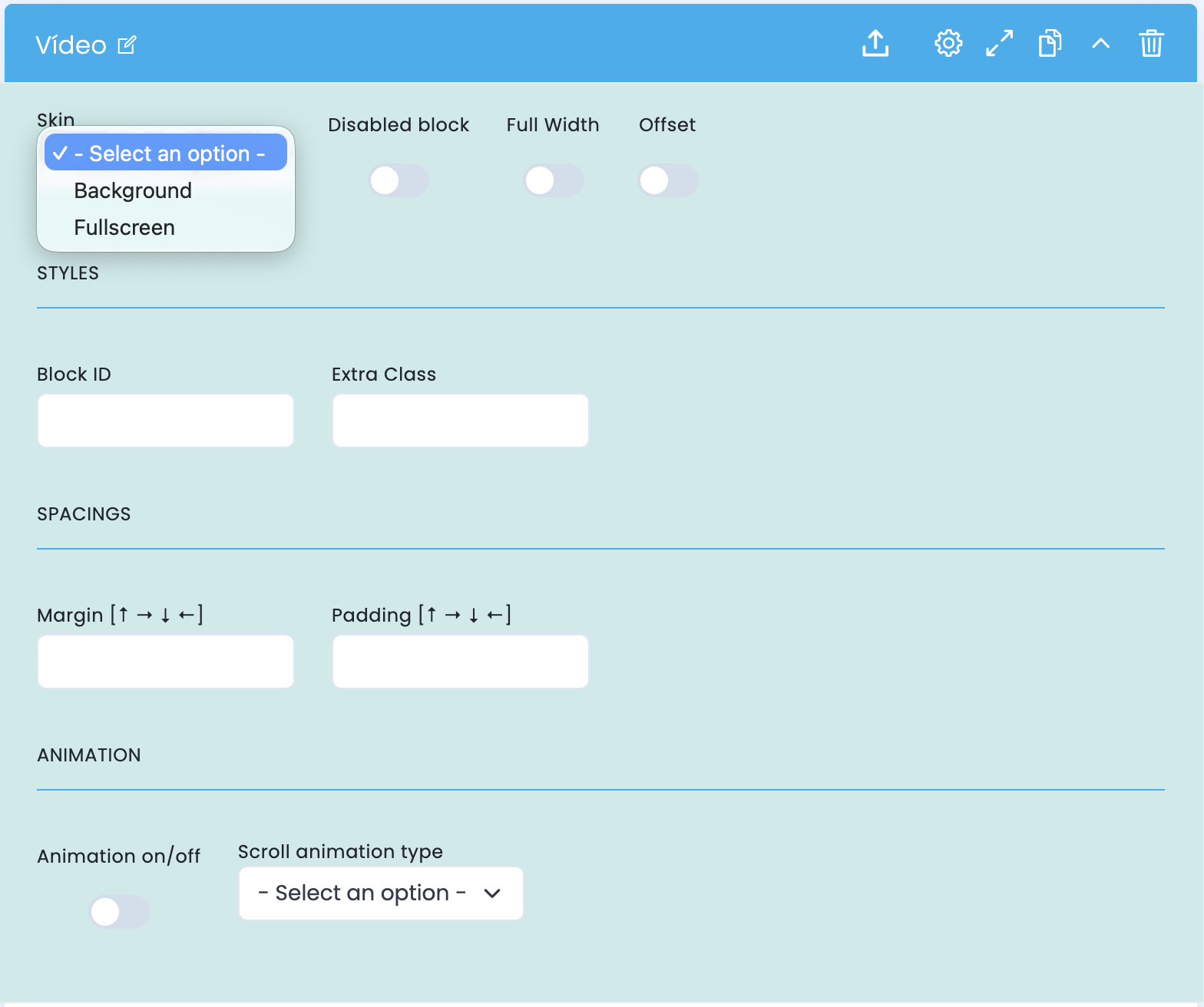
These options control how the block presents itself within the page: visual variant, width, offset, structural fit, and entrance animation.
Visual structure
- Skin defines the overall variant of the block, with visible options such as Background and Fullscreen
- Disabled block lets you disable the component without deleting it
- Full Width gives the block more horizontal presence within the layout
Positioning
- Offset helps shift the block visually into less rigid compositions
- Block ID and Extra Class are useful for anchors, internal navigation, and extra customisation
- Margin and Padding fine-tune how the video fits into the page rhythm
Animation
- Animation on/off enables or disables the block entrance animation
- Scroll animation type defines the motion language applied on the frontend
- Use animation only when it reinforces the experience and does not steal focus from the video content itself
Main content configuration
Sources, video file, cover, and metadata
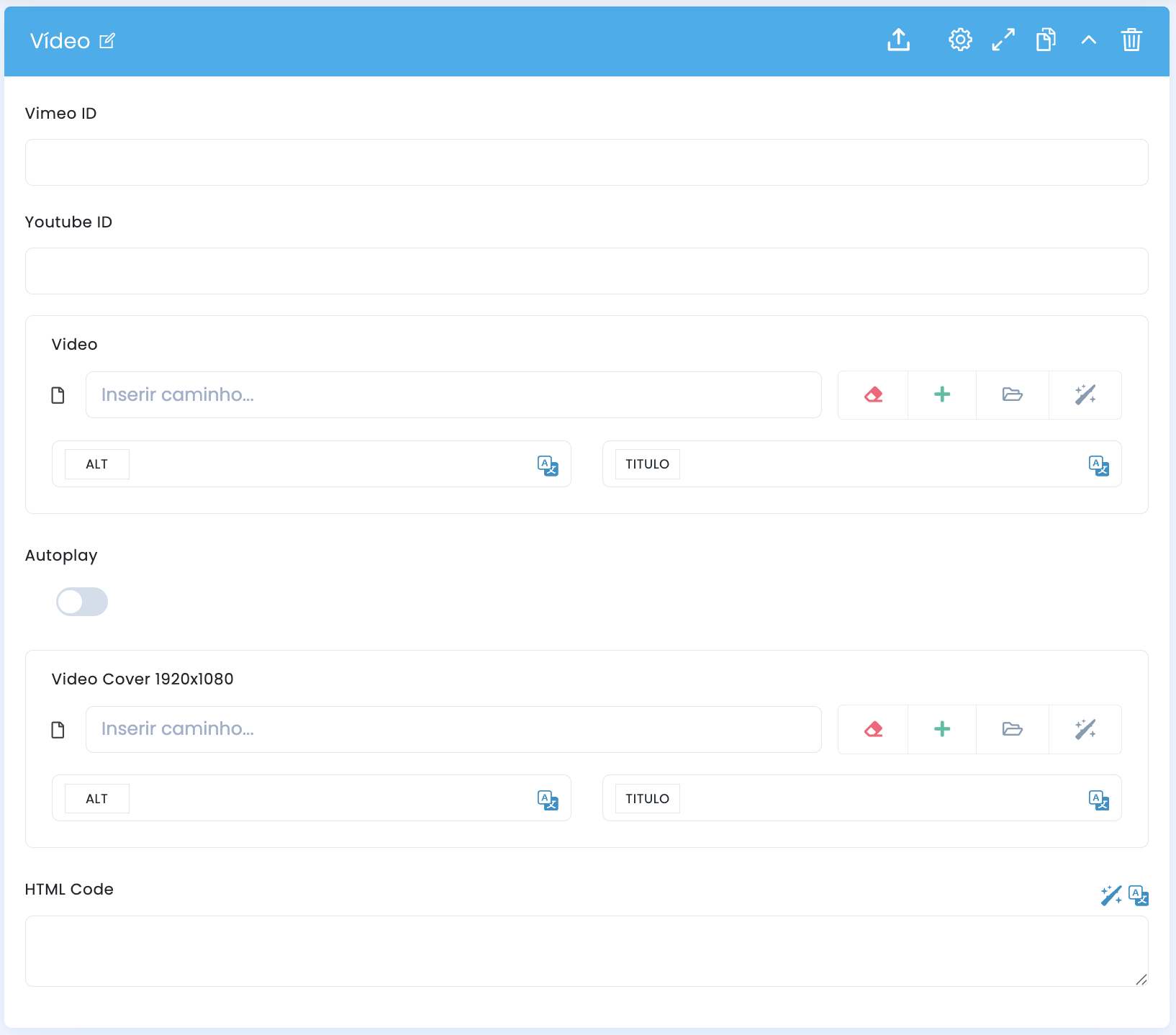
In the main configuration of the block, you define the source of the video, the supporting cover image, autoplay behaviour, and any technical embed through HTML Code.
Video sources
- Vimeo ID and YouTube ID allow external embeds through a more direct setup
- The Video field accepts a first-party file when the project needs more control over the asset
- It is best to fill in the source that will actually be used in production to avoid ambiguous behaviour
Cover and metadata
- Video Cover 1920x1080 creates a consistent entry image before playback starts
- Both the video and the cover include their own ALT and TITLE fields
- This helps preserve context, accessibility, and editorial coherence in the first visual read
Technical embed
- HTML Code is useful for custom players, specific iframes, or integrations that fall outside the standard flow
- It can be helpful when there is consent logic, tracking, or special wrappers tied to the player
- When this route is used, the final result should be reviewed in preview with extra care
Playback and behaviour settings
Autoplay, cover image, and presentation logic
Once the source has been defined, this combination of fields determines how the video presents itself to the user: whether it starts automatically, enters through a cover image, and how it coexists with external embeds or custom HTML.
Autoplay
- The Autoplay field controls whether the video tries to start without initial interaction
- This option should be validated carefully, especially in editorial layouts, on mobile, and in scroll-heavy contexts
- When the cover image matters as a first read, manual start usually protects the experience better
Cover-first
- The Video Cover 1920x1080 helps present the block as a visual unit even before playback begins
- It works well for campaigns, interviews, and modules where the click should be a deliberate decision
- If the video is hero-driven and occupies a large area, the cover needs to carry the first impression on its own
Source priority
- If multiple source fields are filled in, it is important to confirm which priority rule the project follows
- In many cases, the editorial team gains clarity by choosing a single source path per block
- This reduces future maintenance and avoids differences between preview and actual implementation
HTML Code
- When the video depends on a custom embed, HTML Code can replace or complement the ID-based approach
- It is especially useful for consent wrappers, proprietary players, or integrations with specific rules
- In these scenarios, always test responsiveness and behaviour on real devices
Related guides
Complementary context for this block