



Mosaic Block
The Mosaico block is designed to create modular visual layouts where each item can combine images, text, filters, links, and different weights within the grid. It allows you to control gaps, spacing, background, the inner container, animation, and the horizontal and vertical spacing of each tile, while keeping the ALT and TITLE attributes associated with each item.
General information
The Mosaic block is a solution designed to create visual layouts using multiple tiles, each with its own weight, content, and purpose. Instead of repeating images with uniform behavior, this component allows you to build a more editorial-style grid, where some tiles are wider, others taller, and text can be incorporated as part of the composition itself.
This section may include:
- several items with images, text, and links within the same block
- ALT text and title tags associated individually with each image
- Control of border radius and image filter by tile
- settings for Horizontal Columns and Vertical Rows
- Definition of Order Mobile to optimize reading on small screens
- Link via URL or Category / Page, with the corresponding Target
- Structural control of gaps, backgrounds, inside containers, and animations
Use this component when your goal is to create a layout with hierarchy, rhythm, and multiple entry points. The Mosaic makes the most sense when each tile serves a specific purpose within the layout, rather than simply listing images in a uniform manner.
Visual examples of the block
Variations in layout and composition
The Mosaico block can look very different depending on the ratio of horizontal to vertical spans, the use of text, filters, and click targets. The three examples below summarize common ways to use it in the frontend without losing visual consistency.
When to use / When to avoid
Proper application of the component
When to use
- For campaigns, editorial hubs, and visual entries for various pages or categories
- When each tile needs its own weight, with different spans and the possible inclusion of text
- To create modular layouts where images, text, and links work together
- When the section hierarchy should be derived from the grid rather than from a uniform list of images
When to avoid
- When you only need a single image without any compositional logic between tiles
- When the narrative is entirely sequential and depends on advancing slide by slide
- When the text is too long to fit neatly within the grid
Como configurar na pratica
Sequencia de trabalho recomendada
Definir a base
- Escolher Skin, Gap, background e a logica estrutural do bloco
- Definir se o mosaico deve ficar mais contido no container ou mais aberto na composicao
Construir os items
- Carregar imagem, preencher ALT e TITULO e decidir se o tile precisa de texto
- Usar image filter e border radius apenas quando ajudam a leitura e o tom visual
Equilibrar spans
- Ajustar Horizontal Columns para controlar largura relativa
- Ajustar Vertical Rows para controlar altura e ritmo da grelha
Validar mobile e clique
- Confirmar Order Mobile, legibilidade do texto e equilibrio entre tiles
- Rever URL, Category / Page e Target para garantir comportamento coerente no frontend
Boas práticas de conteúdo
Curadoria visual, ordem e acessibilidade
Hierarquia e ritmo
- Escolhe 1 ou 2 tiles com maior protagonismo e deixa os restantes apoiar essa leitura
- Evita dar peso especial a quase todos os items, porque o mosaico perde clareza rapidamente
- Usa gap, spans e contraste de escala para construir ritmo, nao para compensar falta de curadoria
Texto, filtro e destino
- Se usares o campo Texto, garante contraste suficiente entre copy e imagem
- O Image filter deve reforcar a legibilidade, nao tapar a qualidade do asset
- Se um tile parece clicavel, o destino configurado deve corresponder a essa expectativa visual
Configuracoes avancadas do componente Mosaico
Estrutura, espacamentos e comportamento base
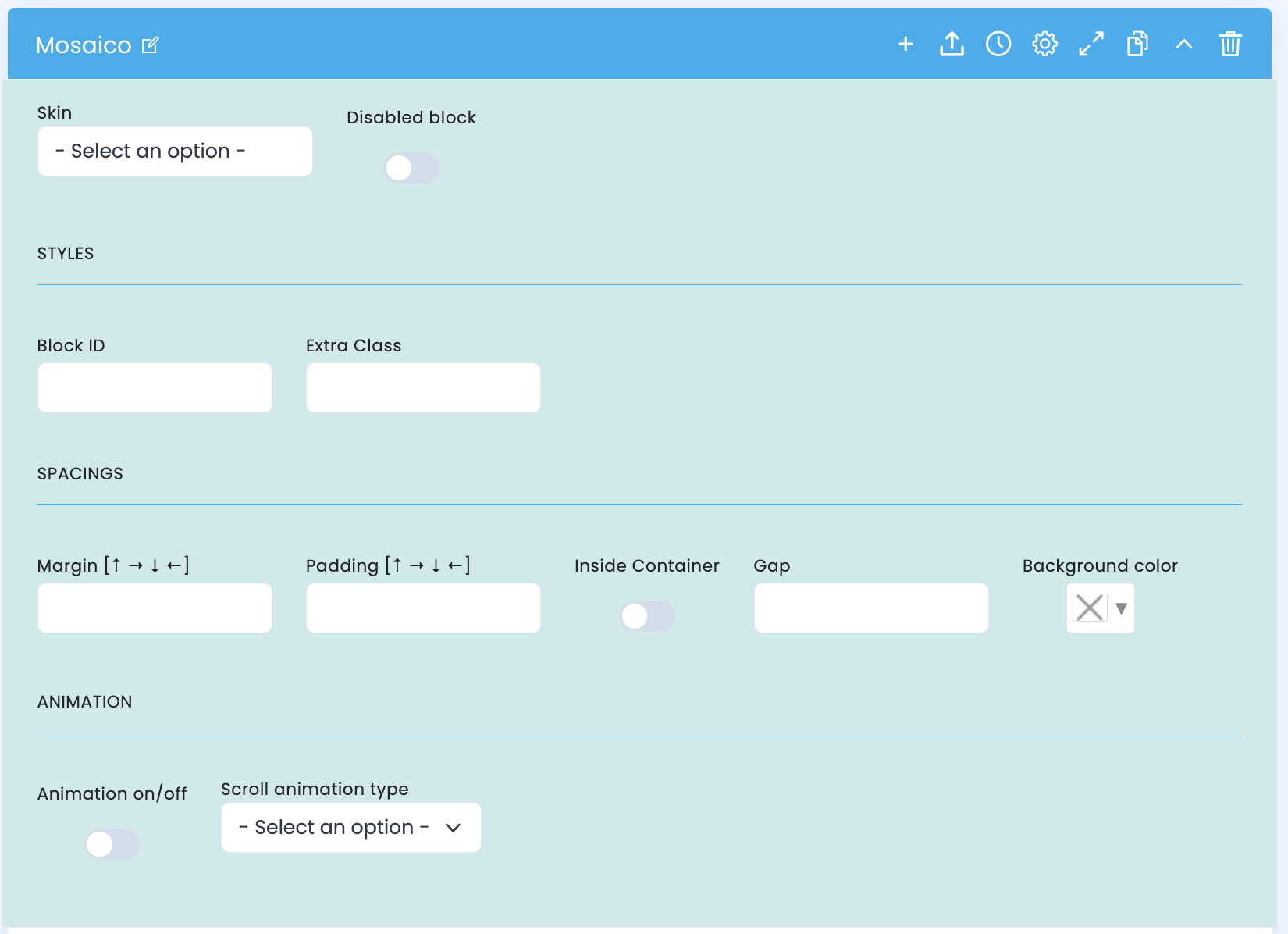
Estas opcoes controlam a base estrutural do mosaico: identidade visual do bloco, organizacao interna, espacamentos e forma como a composicao encaixa no layout da pagina.
Estrutura base
- Skin define a variante visual global do bloco
- Disabled block permite desativar o bloco sem o apagar
- Block ID e Extra Class ajudam na organizacao, ancora e customizacao
Spacings e container
- Margin e Padding definem o encaixe do mosaico no resto da pagina
- Inside Container controla se a grelha respeita mais claramente a largura do container
- Gap define o respiro entre os tiles e influencia diretamente o ritmo visual
Cor e animacao
- Background color define o fundo estrutural da composicao
- Animation on/off ativa ou desativa a entrada animada do bloco
- Scroll animation type ajusta o tipo de animacao aplicado no frontend
Configuracao do conteudo principal
Imagem, metadata e copy de cada tile
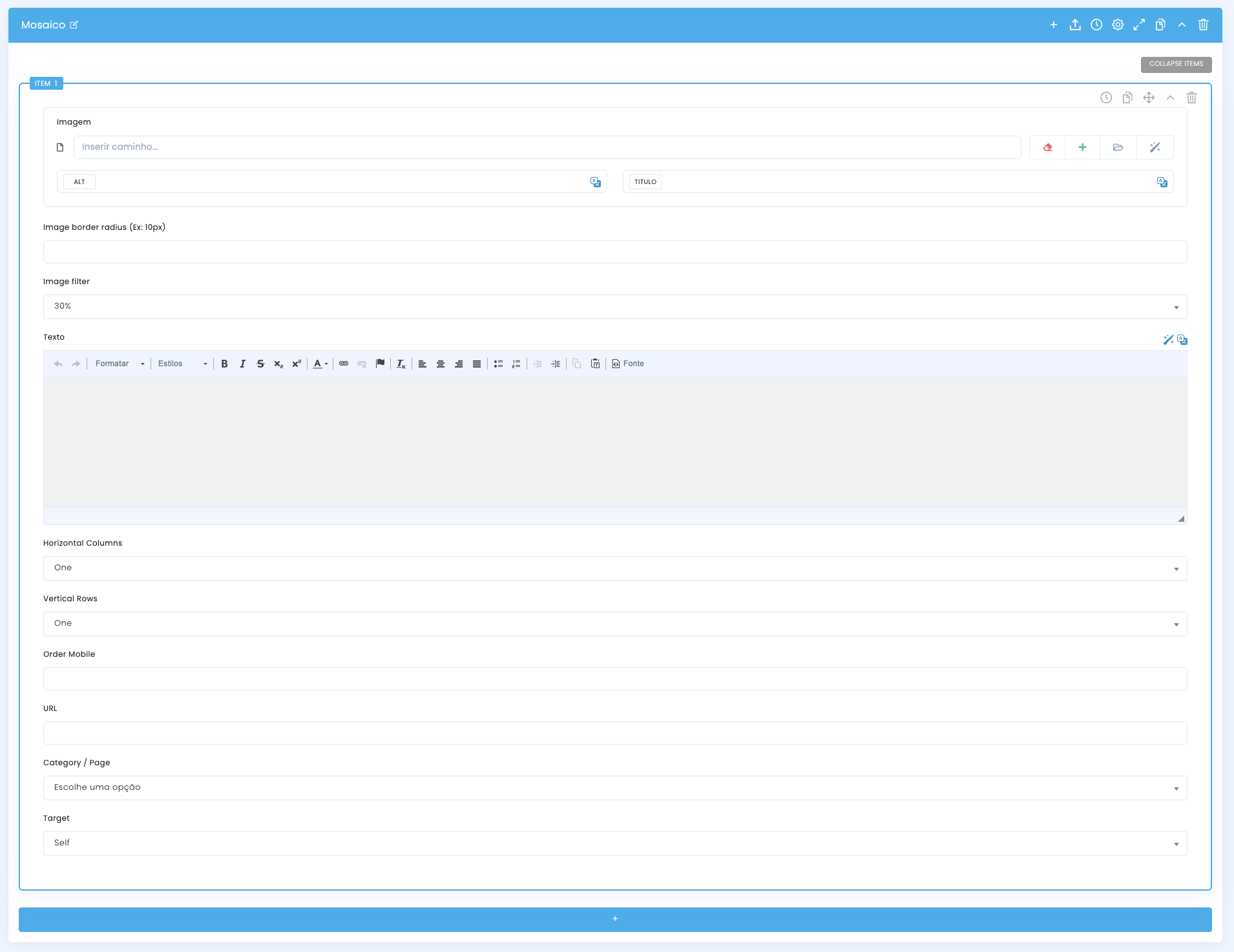
Cada item do mosaico recebe o seu proprio asset, metadata e bloco de conteudo. E nesta area que se define tanto a base visual da imagem como a informacao textual que pode aparecer dentro do tile.
Media e metadata
- O campo Imagem recebe o asset principal de cada tile
- ALT e TITULO ficam associados individualmente a essa imagem
- Isto permite manter acessibilidade e contexto mesmo quando a composicao mistura varios papeis visuais
Tratamento visual
- Image border radius controla a suavizacao visual dos cantos
- Image filter ajuda a escurecer ou uniformizar a imagem para suportar melhor o texto
- Estas opcoes devem servir a legibilidade e nao mascarar um asset fraco
Texto do tile
- O campo Texto permite inserir copy diretamente na composicao
- Funciona bem para titulos curtos, chamadas editoriais ou pequenas frases de apoio
- Se a copy for longa, o tile perde impacto e o mosaico fica visualmente pesado
Configuracoes de apresentacao dos items
Spans, mobile order e comportamento de clique
Depois de definires imagem e copy, e nesta zona que decides quanto espaco cada tile ocupa, como se reorganiza no mobile e para onde encaminha o utilizador quando existe interacao.
Horizontal Columns
- Na pratica, este campo define quantas colunas horizontais o tile ocupa dentro da grelha
- One tende a manter a largura base; valores superiores fazem o tile ganhar mais presenca no eixo horizontal
- Funciona bem para imagens panoramicas, heroes visuais ou tiles que precisam de abrir a leitura
Vertical Rows
- Este campo controla quantas linhas verticais o tile ocupa, alterando a sua altura aparente
- One tende a manter a altura base; valores superiores fazem o tile crescer no eixo vertical
- E util para retratos, detalhes ou blocos textuais que precisam de mais respiracao
Order Mobile
- Permite reorganizar a sequencia dos tiles quando a grelha colapsa para mobile
- E importante quando o tile principal em desktop nao deve ser necessariamente o primeiro em ecras pequenos
- Ajuda a proteger a narrativa e a prioridade comercial da secao
URL, Category / Page e Target
- URL define um destino direto para o tile
- Category / Page ajuda a ligar o tile a uma pagina interna quando a relacao ja existe no CMS
- Target controla se a abertura acontece na mesma pagina ou num novo contexto
Guias relacionados
Contexto complementar para este bloco