


Studio Help · Blocks

Component Snippet

The Snippet block is designed to reuse structures already created in Content > Snippet, allowing the same content to be linked to one or multiple pages without manual duplication. The logic of this component starts outside the page: first the snippet is created, then that snippet is selected inside the block.


General information

The Snippet block works as a bridge between a page and reusable content previously created in the back office. Instead of writing or assembling the same structure multiple times, the team creates an independent snippet, stores it in the content area, and then simply links it wherever needed.


This block can include:


  • selection of a Content Snippet already created in Content > Snippet
  • reuse of the same snippet across multiple pages or contexts
  • structural control through Skin, Disabled block, Block ID, and Extra Class
  • Margin and Padding adjustments for visual integration within the page
  • Animation on/off and Scroll animation type controls

Use this component when there is recurring content, replicated editorial blocks, reusable campaign structures, combinations of multiple blocks that should be maintained from a single source, or whenever centralized maintenance helps reduce mistakes and duplicated work.


Visual examples of the block

3 key moments in the snippet workflow

The Snippet block has one important distinction: the content does not originate inside the page. The three examples below are visual simulations of the component logic, showing snippet creation, snippet association, and the impact of reuse across multiple contexts.

Content > Snippet
Active
Featured artists

Curatorial block prepared for multiple collection pages.

ENMuseum
Draft
Event invitation

Modular structure still being reviewed before publication.

DraftEvent

Example 01 - Reusable snippet library

Simulation of the snippet area already organized by purpose. The logic always begins here: the content is built, named, and saved before it is called into any page.

Snippet Block
Summer newsletter
Linked
Preview of the reused content
Campaign with shared structure

The editor selects an existing snippet and the page starts rendering that content without rebuilding it manually.

Gallery Hero + 3 images
Editorial copy Introduction and context
CTA Button for the next action

Example 02 - Selecting the snippet inside the page

Simulation of the moment when the snippet is linked to the block. The editor chooses an entry in the Content Snippet field and the reused structure becomes immediately available in the layout.

Cross-page reuse
Artists Campaign 2026

A change in the original snippet propagates across all pages where it is linked.

Home Homepage
Landing Campaign
Collection Artist detail

Example 03 - The same snippet across multiple pages

Simulation of the component's main benefit: a single snippet can serve multiple contexts. Maintenance happens in one source only, while each page keeps only the structural settings of the block.

When to use / When to avoid

Reuse with centralized control

When to use

  • When the same set of blocks needs to appear across multiple pages
  • When you want to centralize updates in a single maintenance point
  • For recurring areas such as campaigns, newsletters, invitations, editorial modules, or institutional sections
  • When it makes sense to separate content creation from its page association

When to avoid

  • When the content is unique to a single page and will not be reused
  • When each instance requires significant local variations
  • When the team needs to edit the content directly inside the page itself
  • When reuse may create dependencies that are hard to manage without clear naming
!
In this case: editing the original snippet changes every page where it is linked. That is a strength when the goal is centralization, but it requires care to avoid unexpected changes in already published contexts.

How to use it in practice

Recommended workflow

Create the snippet

  • Go to Content > Snippet
  • Create a new entry with name, language, and description
  • Confirm the active status before reusing it

Build the structure

  • Use Add Block inside the snippet structure
  • Build the content exactly as it should be reused
  • Save the snippet with its final logic already in place

Link it to the page

  • Insert the Snippet block into the page
  • Select the correct entry in the Content Snippet field
  • Avoid selecting temporary or poorly identified snippets

Validate and maintain

  • Test the final result on every page where the snippet appears
  • Update the original snippet whenever the change should apply everywhere
  • Use consistent names to make future associations easier
Best practice: use the snippet as a reusable unit, not as a shortcut to hide disorganized content. The clearer the creation logic and naming convention, the easier the system will be to maintain.

Create the base snippet

Before linking it to the page

Creating a new snippet with name, language, description, and page structure

Snippet creation happens outside the page. This is where the content is named, described, activated, and assembled through its own block structure.

Base data

  • Name identifies the snippet in the block selector
  • Description helps explain the purpose of the content
  • It is best to use clear naming conventions that the team can recognize easily

Language and status

  • Languages defines the language variant in which the snippet is created
  • Active controls whether the snippet can be used
  • In multilingual sites, the language should match the destination page

Page structure

  • Add Block lets you compose the snippet internally
  • You can create simple snippets or more complete structures
  • Saving the snippet is required before linking it to another page

Block content configuration

Selecting the right snippet

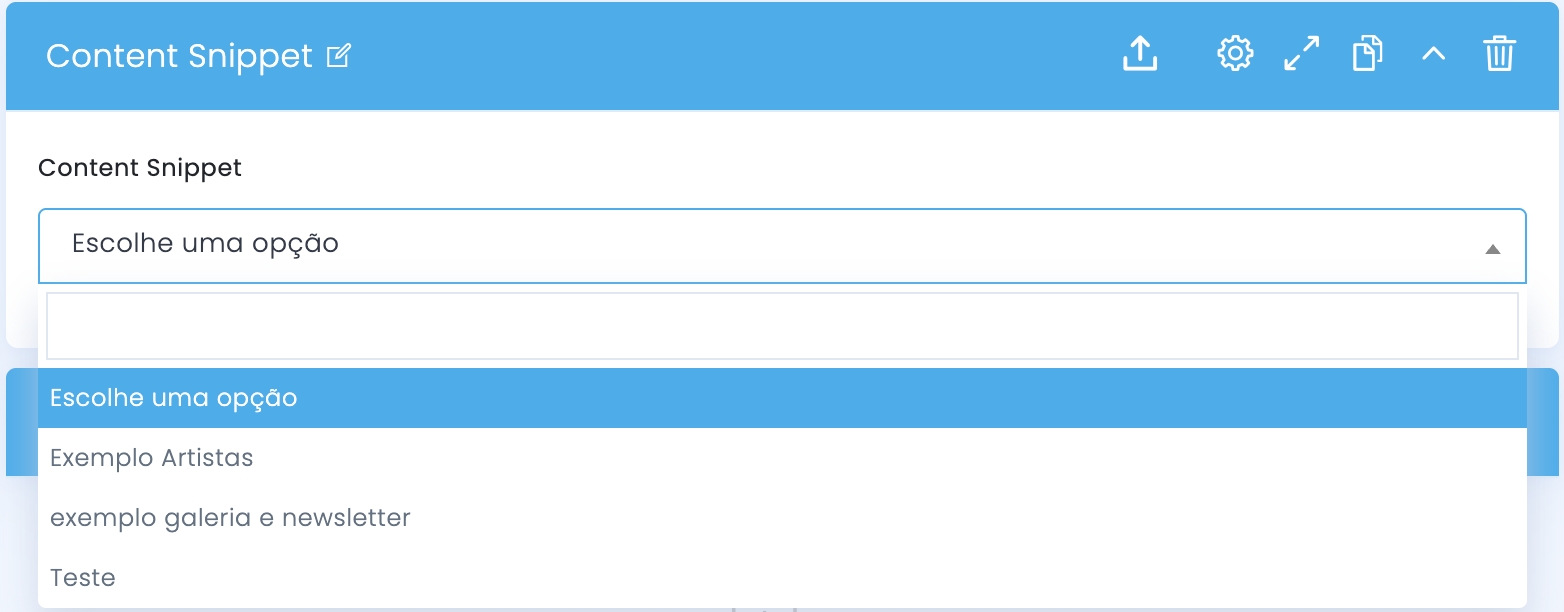
Content Snippet field used to link an existing snippet to the page

Inside the page, the Snippet block is not used to write new content. Its role is to select an existing snippet and render that structure in the current context.

Content Snippet

  • The main field is a selector of available snippets
  • You choose here the entry previously created in Content > Snippet
  • A good name makes correct association much easier

Association logic

  • The block only references the content, it does not duplicate it
  • If the snippet changes, all linked pages reflect that update
  • This logic makes the block especially useful for centralized maintenance

Advanced block settings

Structure, spacing, and animation

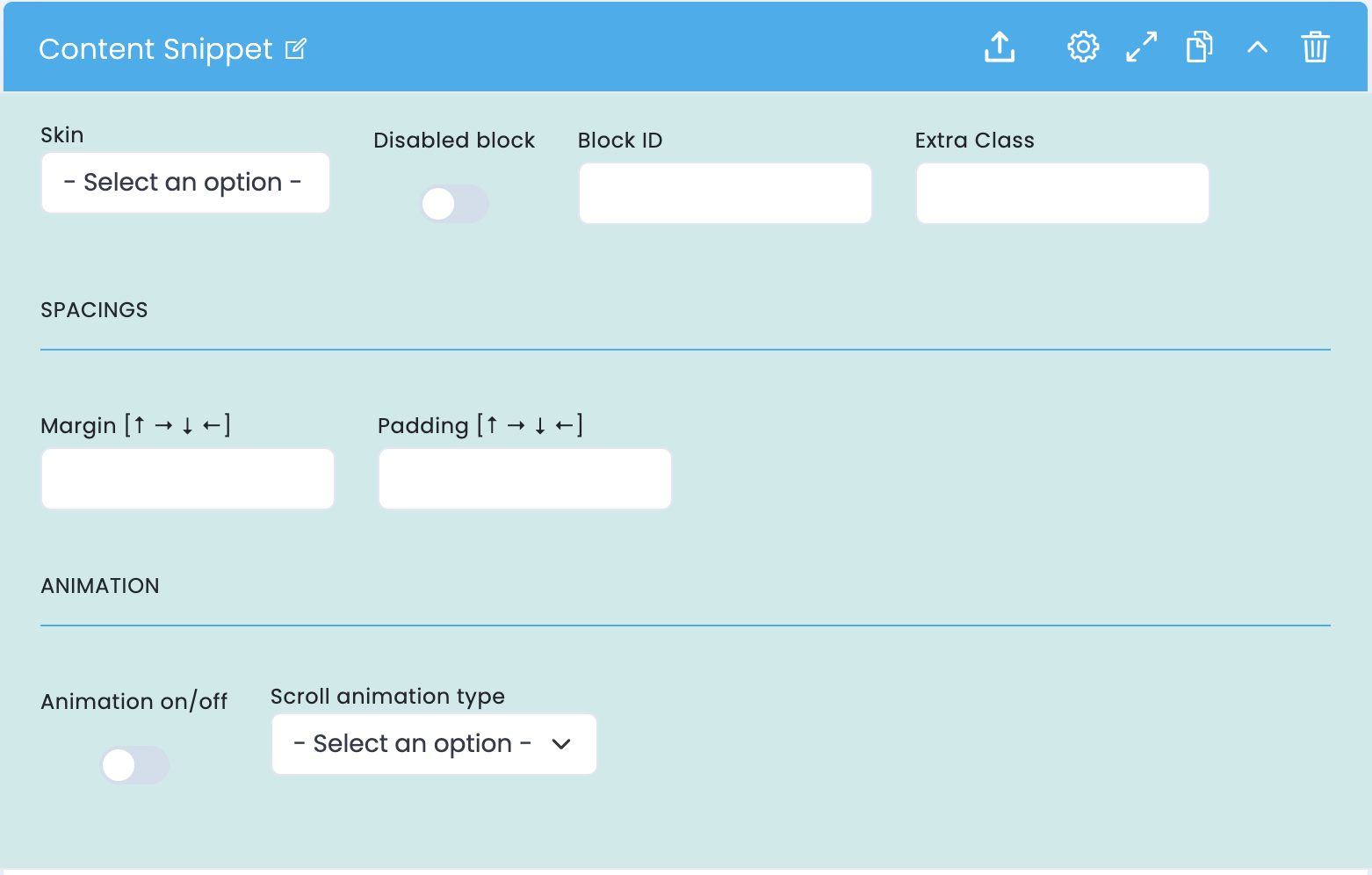
Advanced settings of the Snippet block

These options control how the Snippet block appears on the page, without changing the internal structure of the snippet that was already created.

Structure

  • Skin defines the visual variant of the block
  • Disabled block disables rendering without deleting the configuration
  • Block ID and Extra Class help with anchors and technical adjustments

Spacing

  • Margin controls the outer space of the block
  • Padding controls the inner space of the block
  • These fields help integrate the snippet into the page rhythm

Animation

  • Animation on/off enables or disables animated entry
  • Scroll animation type selects the applied effect
  • Animation should support readability, not compete with the snippet content

Maintenance best practices

Clarity, reuse, and control

Organization

  • Give the snippet a specific and easy-to-recognize name
  • Use descriptions that explain where and why the snippet exists
  • Avoid generic names such as “Test” or “New Block” for production snippets
  • If the site is multilingual, keep the language logic clearly separated

Governance

  • Confirm who is responsible for updating snippets reused across multiple pages
  • Validate the impact before changing an already published snippet
  • Always test the linked pages when structural changes are made
  • Avoid using snippets when the need is purely local and one-off
!
Attention: the Snippet block is excellent for reuse, but that also means a seemingly small change can have a cross-page effect. Whenever possible, document internally where each snippet is being used.

Related guides

Blocks that often benefit from reuse