



Overview
Editing an attribute is not just about correcting a name. This is where the team keeps the structure alive: reviewing the main fields, updating the type or linked content, and adding new values when the list needs to grow.
1
Where to edit an existing attribute
List → edit action
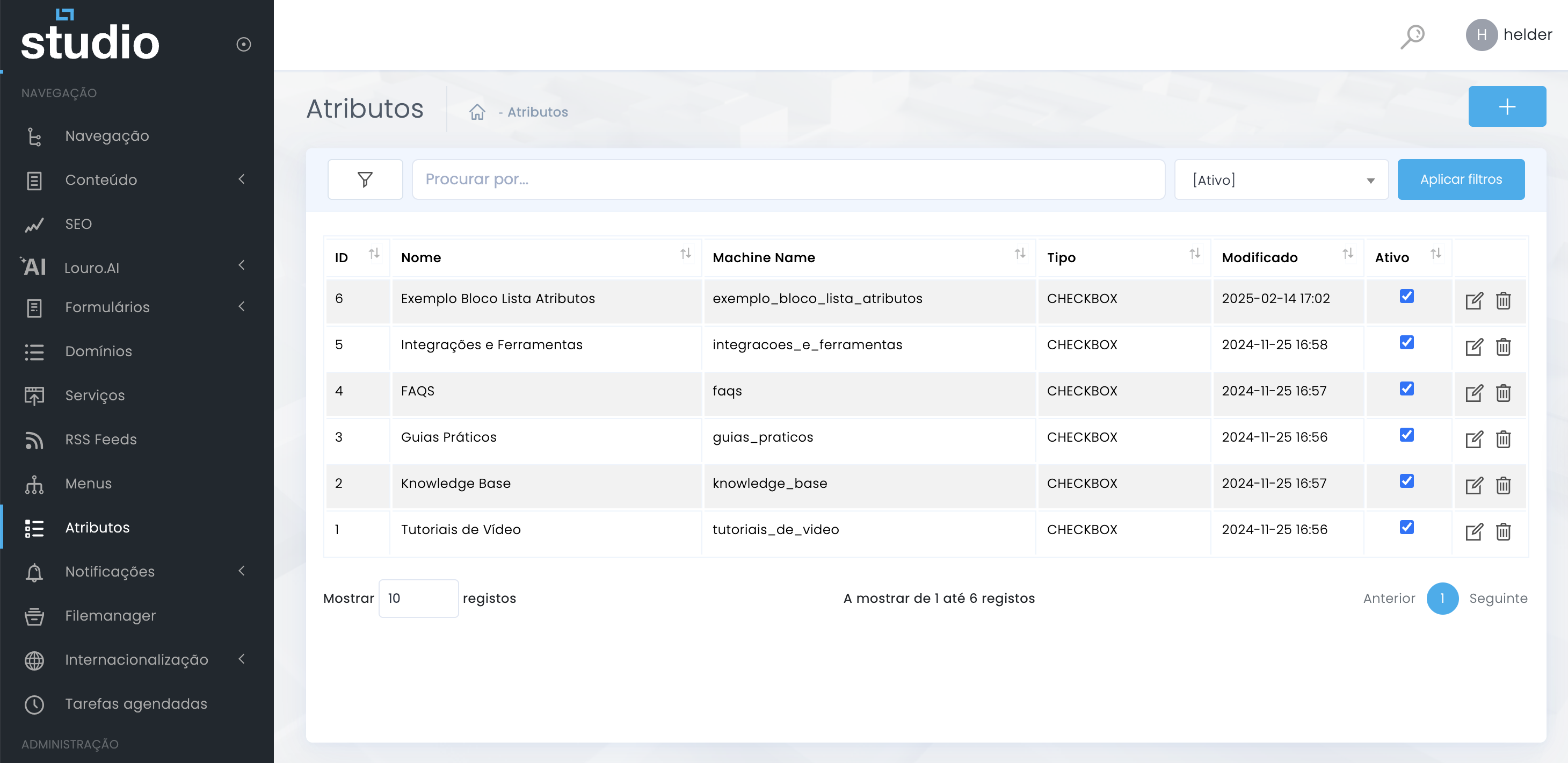
Practical tip: before editing, confirm that you are opening the right attribute by checking the name, machine name, and type. This avoids changing a similar but wrong structure.
2
Review the main fields
Structure header
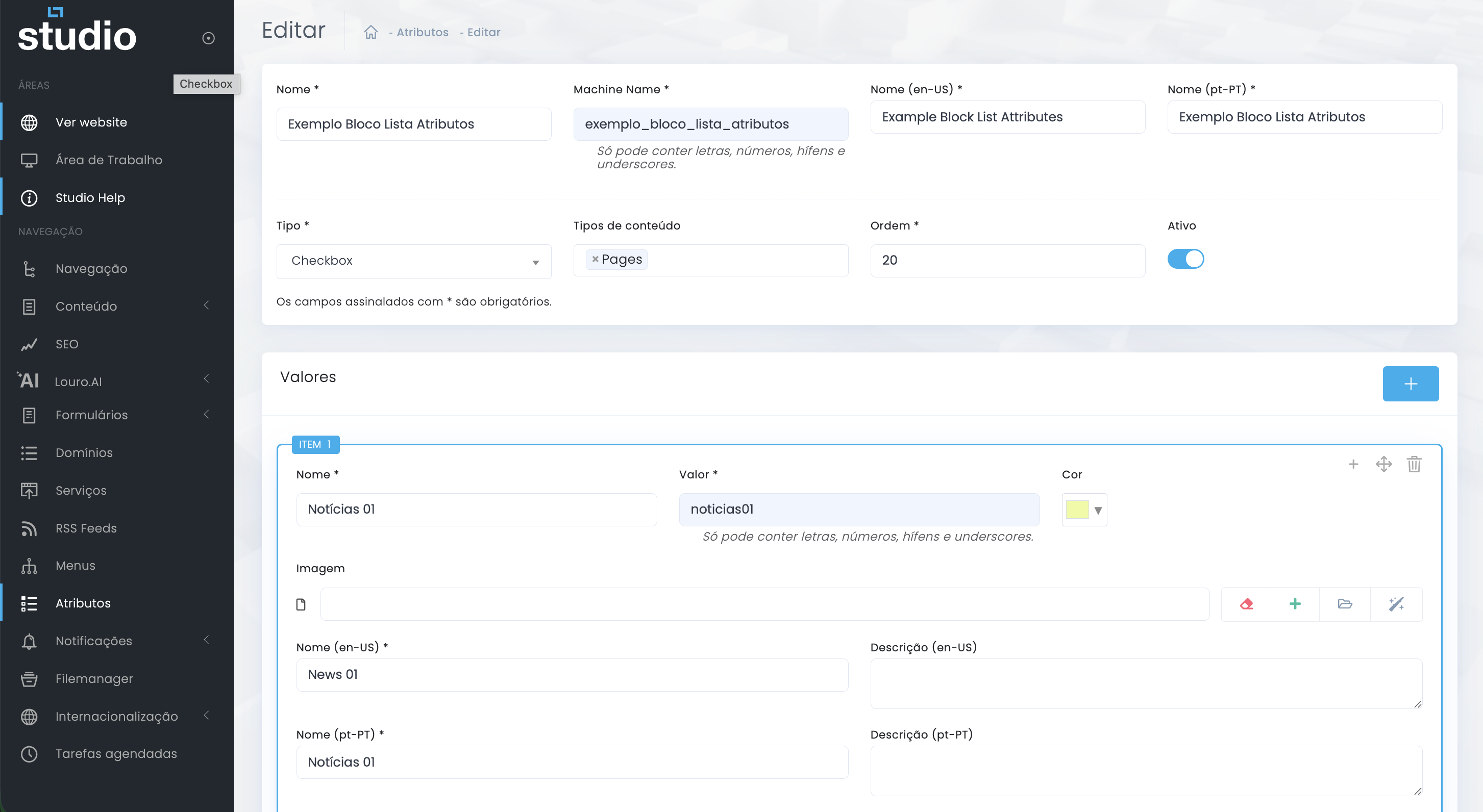
Structural fields
- Name and machine name help confirm the attribute's identity.
- Type shows the logic currently assigned to the structure.
- Content types reveal where it is being used.
Operational control
- Order helps maintain reading consistency.
- Active shows whether the structure is still operational.
- The name by language versions help confirm the multilingual context.
3
Edit existing values
Maintaining items that already exist
- Each item can have a name, technical value, color, image, and multilingual content.
- The Name (en-US) and Name (pt-PT) fields help maintain presentation consistency by language.
- Descriptions allow the value to be enriched when it needs additional editorial context.
- The side controls inside the item help duplicate, reorder, or remove values, depending on the case.
Important: changing existing values can have a direct impact wherever the attribute is already being used. It is worth validating whether the change is purely editorial or whether it alters the structure's logic.
4
Add new values
Expand the structure safely
1. Scroll to the Values section
In the lower part of the form, identify the list of existing items and the + button on the right.
2. Create a new item
Use the + button to open a new value block inside the same structure.
3. Fill in the name and technical value
Make sure the new item follows the same naming logic as the others so internal consistency is not broken.
4. Complete the supporting information
When relevant, add color, image, translations, and descriptions so the value becomes complete and reusable.
Good practice: when adding new values, take the opportunity to review the overall order of the list and confirm that older items still make sense inside the same structure.
5
What to validate before saving
Quick maintenance checklist
- Confirm that the correct attribute was opened before changing names, type, or linked content.
- Validate that the new values follow the same logic as the existing ones.
- Review translations, descriptions, and visual fields to avoid incomplete items.
- If the structure is already in use, validate the impact of the changes in the content where it appears.
- Make sure the final order of the list remains coherent after editing.
Attention: editing an attribute in production without validating its real usage can create visual or editorial inconsistencies across several pages at the same time.
6
Explore also
Related pages